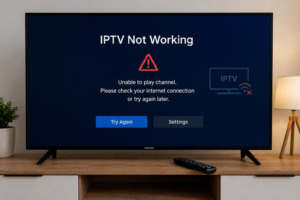
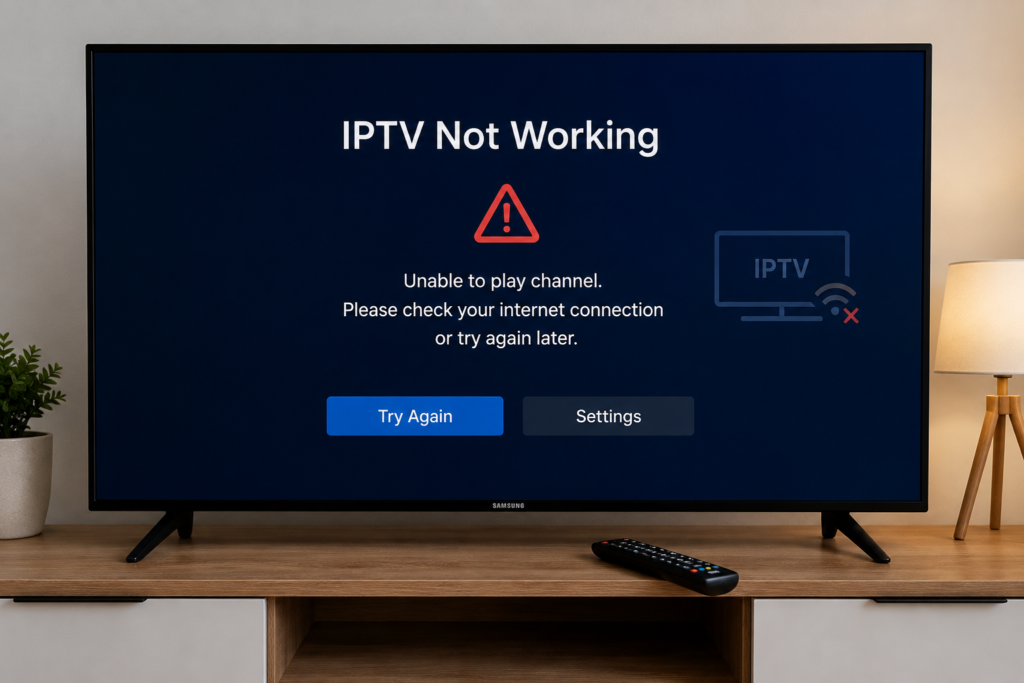
Samsung TV IPTV not working issues are very common in 2026, especially for users streaming live TV, sports, and movies on Samsung Smart TVs. Many IPTV users experience buffering, freezing, loading errors, or app crashes while using IPTV apps on Samsung TVs..
Best IPTV Apps for Samsung TV in 2026
If your Samsung TV IPTV is not working properly, don’t worry. Most IPTV buffering and streaming issues can be fixed quickly with the right settings and troubleshooting methods. In this complete Samsung Smart TV IPTV setup guide, you will learn the best solutions to improve streaming quality, fix IPTV freezing, optimize internet settings, and enjoy stable IPTV streaming on Samsung Smart TVs.
Whether you are using IPTV Smarters Pro, Smart IPTV player, IBO Player, or other Tizen OS IPTV applications, these easy fixes can help improve your IPTV experience.
Why Is Samsung TV IPTV Not Working?
There are many reasons why Samsung TV IPTV not working issues may appear on Samsung Smart TVs. Some IPTV streaming problems are caused by slow internet connections, while others may be related to outdated IPTV apps, DNS settings, overloaded servers, or Samsung Smart TV software issues.
Common IPTV problems on Samsung TVs include:
- IPTV buffering during live streaming
- IPTV channels not loading
- Black screen issues
- IPTV freezing during sports streaming
- App crashes on Samsung Smart TVs
- Poor 4K IPTV streaming performance
- IPTV Smarters Pro login errors
- Smart IPTV player not connecting
Fortunately, most Samsung Smart TV IPTV issues can be fixed using the troubleshooting methods below.
How to Fix Samsung TV IPTV Not Working Issues
Fix 1 – Restart Your Samsung Smart TV
The first and easiest solution is restarting your Samsung Smart TV. Temporary system errors or memory overload can affect IPTV streaming performance.
To restart your Samsung TV:
- Turn off the TV completely
- Unplug the power cable for 60 seconds
- Restart the TV
- Open your IPTV app again
Restarting the TV refreshes system memory and may instantly fix IPTV buffering or loading issues on Samsung Smart TVs.
Fix 2 – Check Your Internet Speed for IPTV Streaming
A slow or unstable internet connection is one of the biggest causes of IPTV buffering and freezing on Samsung TVs.
For smooth IPTV streaming, recommended internet speeds are:
- HD IPTV streaming: at least 15 Mbps
- Full HD streaming: 25 Mbps
- 4K IPTV streaming: 50 Mbps or higher
WiFi interference can also affect IPTV apps Samsung users rely on. If possible, connect your Samsung Smart TV directly using an Ethernet cable for more stable streaming quality.
You can also restart your router and reduce the number of connected devices using the same network.
Fix 3 – Update Your IPTV App on Samsung TV
Outdated IPTV apps often create IPTV streaming problems on Samsung Smart TVs. Many IPTV applications release updates regularly to improve compatibility with Tizen OS IPTV systems.
Popular IPTV apps Samsung users install include:
- IPTV Smarters Pro
- Smart IPTV player
- IBO Player
- Tivimate
- SmartOne IPTV
Make sure your IPTV app is updated to the latest version from the Samsung App Store.
Updating the app can fix:
- buffering issues
- loading errors
- login problems
- crashing apps
- playback issues
Fix 4 – Clear IPTV App Cache and Data
Over time, IPTV apps Samsung Smart TV users install may accumulate temporary files and corrupted cache data. This can slow down IPTV streaming performance.
To clear IPTV app cache:
- Open Samsung TV Settings
- Go to Apps
- Select your IPTV app
- Choose Clear Cache
- Restart the app
This method often improves IPTV streaming quality and reduces freezing issues.
Fix 5 – Check Samsung TV Software Updates
Running outdated Samsung Smart TV firmware may create compatibility issues with IPTV apps and Smart IPTV players. In many cases, Samsung TV IPTV not working problems are caused by old system software that affects streaming performance, app stability, buffering, and IPTV connectivity on Samsung Smart TVs.
To update your Samsung TV:
- Open Settings
- Go to Support
- Select Software Update
- Click Update Now
Keeping your Samsung TV updated improves:
- streaming performance
- app stability
- IPTV compatibility
- security
Updated firmware is especially important for stable 4K IPTV streaming.
Fix 6 – Improve IPTV Streaming Quality
If IPTV freezing or buffering continues, try lowering streaming quality temporarily.
Many IPTV apps Samsung users install allow changing:
- video resolution
- stream format
- decoder settings
Switching from 4K IPTV streaming to Full HD may improve stability on slower internet connections.
You can also:
- close background apps
- disable VPN temporarily
- restart IPTV playlist
- reconnect WiFi
Fix 7 – Reinstall the IPTV Application
Sometimes reinstalling the IPTV app completely can fix Samsung Smart TV IPTV problems. If Samsung TV IPTV not working issues continue, removing and reinstalling the IPTV application may solve buffering, freezing, loading errors, app crashes, and streaming connection problems on Samsung Smart TVs.
To reinstall the app:
- Remove the IPTV app
- Restart the Samsung TV
- Install the app again
- Re-enter IPTV login details
Reinstalling often fixes:
- black screen issues
- app crashes
- streaming errors
- IPTV playlist loading issues
This works well for IPTV Smarters Pro and Smart IPTV player applications.
Fix 8 – Use the Best IPTV Apps for Samsung TVs
Not all IPTV apps are optimized for Samsung Smart TVs. Choosing a reliable Smart IPTV player is very important for stable streaming performance and smooth 4K IPTV playback. In many cases, Samsung TV IPTV not working issues are caused by incompatible or poorly optimized IPTV applications that create buffering, freezing, loading errors, and streaming interruptions on Samsung Smart TVs.
Some of the best IPTV apps Samsung users prefer in 2026 include:
- IPTV Smarters Pro
- Smart IPTV
- IBO Player
- SmartOne IPTV
- Tivimate
You can also read our related guides:
- Best IPTV App for Samsung TV in 2026
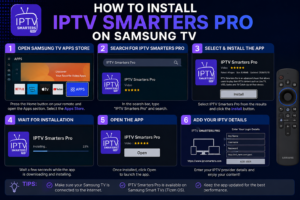
- How to Install IPTV Smarters Pro on Samsung TV
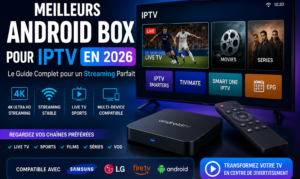
- Best Android Box for IPTV in 2026
These guides help improve Samsung Smart TV IPTV setup and streaming performance.
Fix 9 – Check IPTV Server Stability
Sometimes IPTV streaming problems are not caused by the Samsung TV itself. The IPTV provider server may be overloaded, unstable, or experiencing temporary connection issues. In many situations, Samsung TV IPTV not working problems are related to poor server performance, which can cause buffering, freezing, loading errors, black screens, and interruptions during live IPTV streaming on Samsung Smart TVs.
Common server-related issues include:
- channels not loading
- freezing during sports events
- poor video quality
- buffering during peak hours
A stable IPTV subscription with optimized servers is essential for smooth Samsung Smart TV IPTV streaming.
Fix 10 – Reset Samsung Smart TV Network Settings
If none of the previous methods work, resetting Samsung TV network settings may solve IPTV connection issues. In some cases, Samsung TV IPTV not working problems are caused by incorrect network configurations, unstable WiFi connections, or DNS errors that affect IPTV streaming performance on Samsung Smart TVs.
Steps:
- Open Settings
- Go to General
- Select Network
- Reset Network Settings
- Reconnect to WiFi
This can fix:
- connection problems
- IPTV loading errors
- network instability
- streaming interruptions
Best Tips for Stable IPTV Streaming on Samsung TVs
To enjoy stable IPTV streaming on Samsung Smart TVs:
- Use high-speed internet
- Keep IPTV apps updated
- Restart TV regularly
- Use Ethernet instead of WiFi when possible
- Choose optimized IPTV apps Samsung users trust
- Avoid overloaded free IPTV playlists
- Use compatible Tizen OS IPTV applications
- Optimize video quality settings
These simple recommendations can significantly improve IPTV streaming quality and reduce buffering problems.
Frequently Asked Questions
Why is IPTV buffering on Samsung TV?
IPTV buffering on Samsung Smart TVs is usually caused by slow internet speed, unstable WiFi connections, overloaded IPTV servers, or outdated IPTV apps. Restarting the router, updating the IPTV app, and using Ethernet instead of WiFi can help improve streaming quality.
Which IPTV app works best on Samsung TVs?
Some of the best IPTV apps Samsung users prefer include IPTV Smarters Pro, Smart IPTV player, IBO Player, and SmartOne IPTV. These applications are optimized for Samsung Smart TVs and support HD and 4K IPTV streaming.
Can Samsung Smart TVs stream IPTV?
Yes. Samsung Smart TVs fully support IPTV streaming using compatible IPTV applications available on Tizen OS IPTV platforms. Users can stream live TV, movies, sports, and series directly from IPTV apps Samsung TVs support.
How much internet speed is needed for IPTV?
Recommended internet speed for IPTV streaming depends on video quality:
- HD streaming: 15 Mbps
- Full HD streaming: 25 Mbps
- 4K IPTV streaming: 50 Mbps or higher
Stable internet is very important for avoiding IPTV buffering and freezing.
Why does IPTV freeze on Samsung TV?
IPTV freezing on Samsung TVs may happen because of poor internet stability, outdated IPTV apps, overloaded IPTV servers, or incorrect streaming settings. Restarting the TV, updating apps, and checking network quality often fixes freezing issues.
Conclusion
Samsung Smart TV IPTV problems can usually be fixed using simple troubleshooting methods. Whether you experience IPTV buffering, freezing, loading errors, or Smart IPTV player crashes, the solutions above can help improve streaming stability and optimize your IPTV experience. In many cases, Samsung TV IPTV not working issues are related to internet stability, outdated IPTV apps, or incorrect Smart TV settings.
By using updated IPTV apps Samsung users trust, improving internet quality, and optimizing Samsung Smart TV settings, you can enjoy stable HD and 4K IPTV streaming in 2026 without interruptions. Following these troubleshooting methods can also help reduce Samsung TV IPTV not working problems and improve overall streaming performance.
Need stable IPTV streaming for Samsung Smart TVs? Explore our premium HD and 4K IPTV subscription compatible with IPTV Smarters Pro, Smart IPTV, and Samsung Smart TVs.